
Pads, Playback, and Pad Controls
Play Pads
Section titled “Play Pads”- Mouse: click a populated pad.
- Keyboard: use the keys shown in the map below.
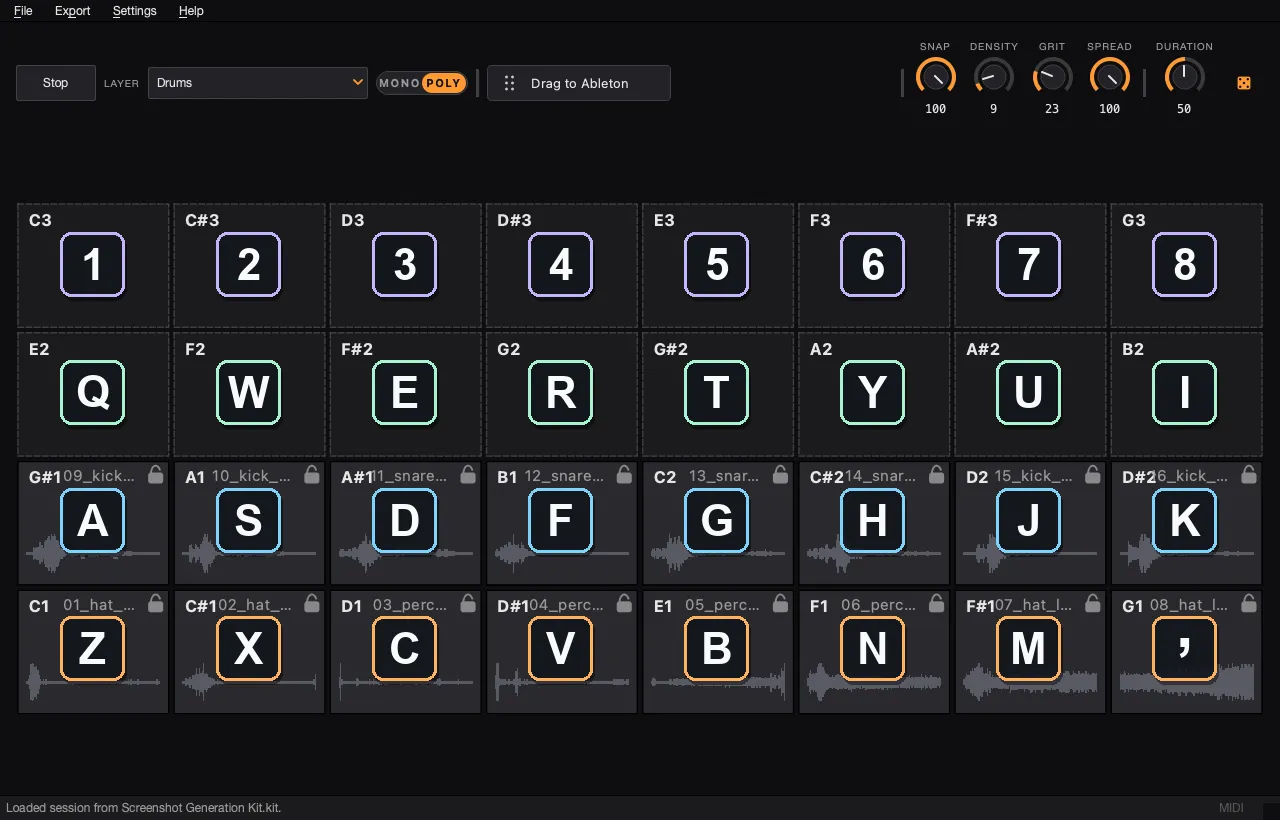
- MIDI: choose a controller in Settings > MIDI input, then play notes
C1throughG3to trigger pads 1 through 32.
Use Stop, Escape, or Ctrl+. to stop all currently playing audio.
Import Samples onto Pads
Section titled “Import Samples onto Pads”- Drop one WAV or MP3 file onto a pad to import it. If the pad is occupied, AutoSamplr asks before replacing it.
- Drop several WAV or MP3 files onto the grid to fill empty, unlocked pads. Import begins at the hovered pad, continues in grid order, then wraps to pad 1.
- Occupied and locked pads are skipped. AutoSamplr reports files that fail or do not fit.
Move or Copy Pads
Section titled “Move or Copy Pads”- Drag a populated pad onto another slot to move it. Its trim, playback mode, controls, and lock state move with it.
- Hold Command on macOS or Control on Windows/Linux while dragging to copy instead. You can press the modifier before or during the drag.
- Dragging pads into Finder, Explorer, or a DAW exports their WAV files without changing the kit.
Pad Actions
Section titled “Pad Actions”- Lock or unlock a pad: click its lock icon, or press
Lto toggle the last pad played on the current layer. - Edit or trim a pad: right-click it. On macOS, Control-click also works.
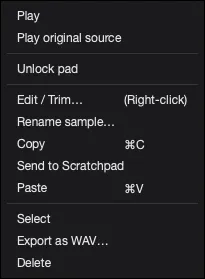
- Open a pad’s action menu: Shift-right-click a populated pad. Choose Rename sample… to change its name while keeping the numbered slot prefix.
Lock protects a pad from rerolls; it does not block explicit edits or actions.
To select and change several pads together, see Multi-Edit Mode.