
Importing Audio
Ways to Add Audio
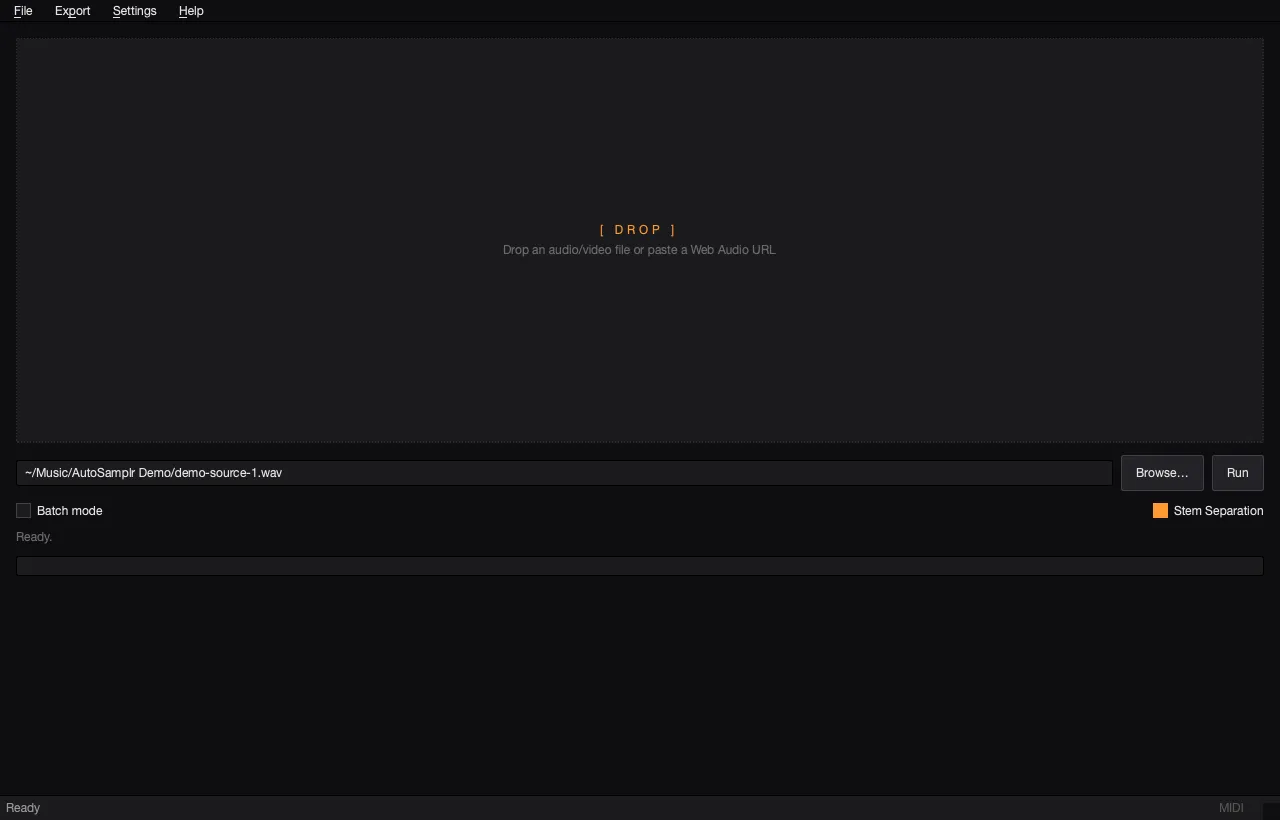
Section titled “Ways to Add Audio”- Click Browse to choose one or more local audio files.
- Drag a local audio file into the drop area.
- Paste a supported web audio link into the input field, or drag the link into the drop area. Press Enter to start the current source.
Supported audio formats include WAV, MP3, FLAC, M4A, AAC, OGG, Opus, AIF, AIFF, and OGA.
Import Multiple Sources as Layers
Section titled “Import Multiple Sources as Layers”Select several local files in Browse, turn off Stem Separation, then choose Run. AutoSamplr creates one intact layer per source and names each layer from its source file.
Multiple sources cannot run together while Stem Separation is on. Turn it off for one layered kit, or use Batch Mode to create a separate stem-separated kit from each source.
Reopen Saved Work
Section titled “Reopen Saved Work”To continue a saved project, use File > Open session (.kit). You can also drag a .kit into AutoSamplr or, on Windows, paste one copied from File Explorer.