
Export Options
Export Formats
Section titled “Export Formats”Use File or Export after a run. Both menus point at the same export actions.
| Format | Use it for | Notes |
|---|---|---|
AutoSamplr session (.kit) | Saving work you want to reopen in AutoSamplr. | Keeps the current layers, pads, locks, trims, and macro settings. |
Ableton Drum Rack (.adg) | Opening the kit in Ableton Live. | Creates one Drum Rack per layer and preserves each pad’s 1 Shot, Hold, or Loop mode. The Drag to Ableton button uses this format too. After loading it in Live, use File > Collect All and Save. |
Ableton Move/Note preset (.ablpresetbundle) | Sending a 16-pad kit to Ableton Move or Ableton Note workflows. | Uses pads 1 through 16 from the current layer. |
| Numbered WAV pack | Importing into hardware samplers, DAWs, or folders that expect plain audio files. | Creates layer folders with files named like 01 - Kick.wav, 02 - Snare.wav, and so on, so import order stays predictable. |
| Single pad WAV | Grabbing one sound without exporting the whole kit. | Right-click a populated pad and choose Export as WAV. |
| Selected pad WAVs | Exporting only a chosen subset. | Select pads in Multi-Edit Mode, then use Export WAVs… or drag them out together. |
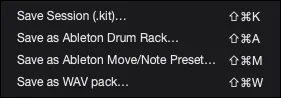
After a successful export, choose Open Folder to reveal the output.
Drag WAV Files
Section titled “Drag WAV Files”- Export one pad by dragging: drag a populated pad into Finder, File Explorer, or a DAW. AutoSamplr exports its WAV without changing the kit.
- Export several pads by dragging: select them in Multi-Edit Mode, then drag any checked pad to the destination. Each selected pad is exported as a separate WAV file.
Multi-Pad Drag Walkthrough
Section titled “Multi-Pad Drag Walkthrough”Watch selected pads move into Ableton Live as separate WAV files.
Ableton Export Walkthrough
Section titled “Ableton Export Walkthrough”Watch AutoSamplr export a kit to Ableton Live.
Playback Modes in Ableton
Section titled “Playback Modes in Ableton”| AutoSamplr mode | Ableton Simpler behavior |
|---|---|
| 1 Shot | One-Shot with Trigger. |
| Hold | One-Shot with Gate. |
| Loop | Classic mode with Loop enabled. |
Ableton Sample Collection
Section titled “Ableton Sample Collection”After loading an AutoSamplr .adg in Ableton Live, use File > Collect All and Save in Ableton. If you do not collect samples in Ableton, clearing AutoSamplr cache can make the Ableton set lose its sounds.